Enterprise MCP Server Setup for Notion Workspaces
Plan tier, rate limits, and OAuth choice determine what agents can actually do in Notion.
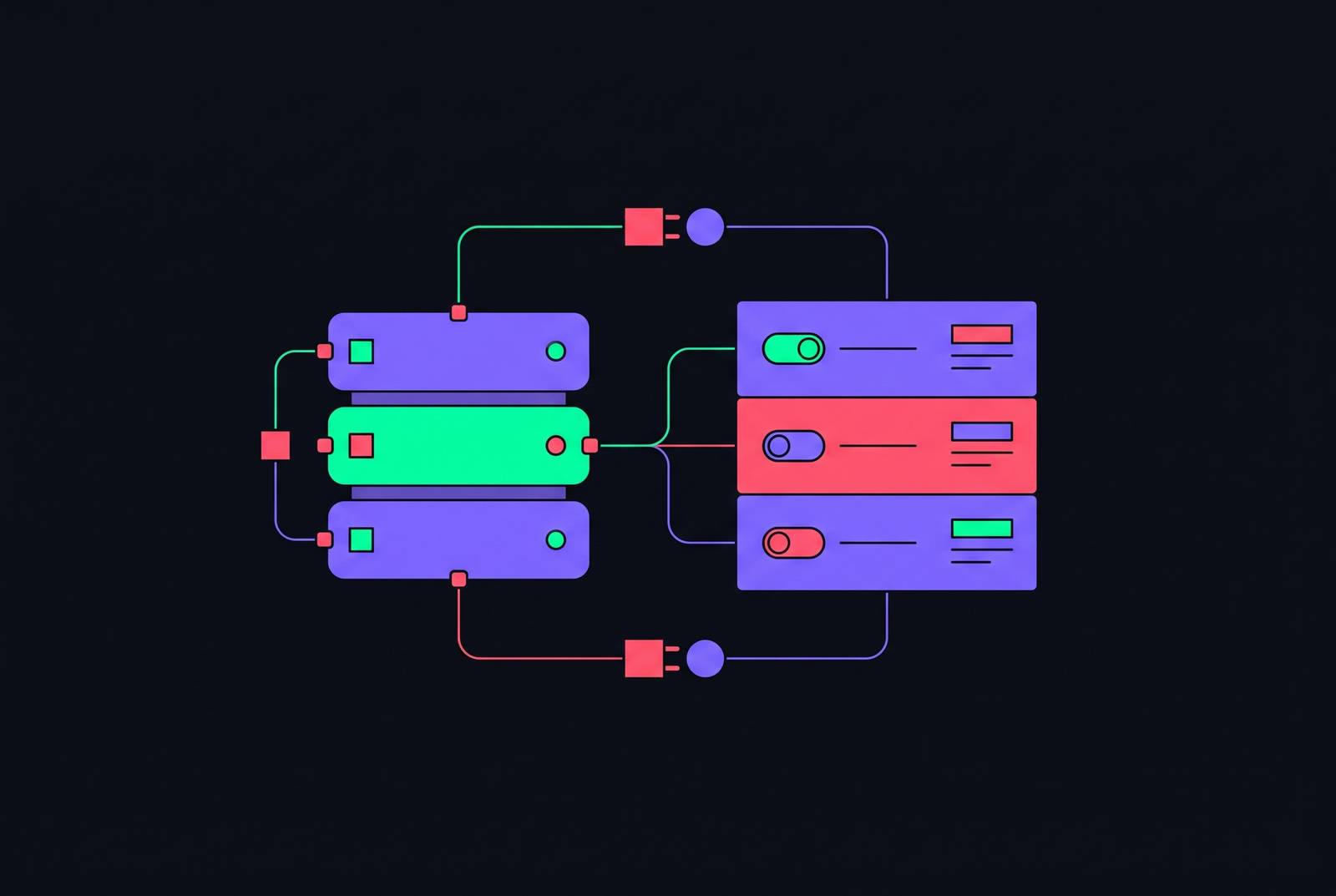
The Notion MCP server is a live, writable surface that turns Notion into a set of typed tools an AI agent can find and run on its own. Notion hosts it directly, at a Streamable HTTP address it recommends for new connections and a Server-Sent Events address kept as a fallback for older clients, so there's no local process to run and no token sitting in a config file once a team takes the hosted path. The server exposes 18 documented tools covering read, write, and structural work: search, fetch, create pages, update pages, query data sources, move pages, duplicate pages, create database, create view, update view, create comments, convert page to skill, download skill, search skills, and get or list users. An agent doesn't hit one endpoint and get an answer back. It picks from this list and chains calls together, so a single request from a user can turn into a search, a fetch, and a page update run in sequence.
The connection runs both directions. Notion AI and Custom Agents can hold outbound MCP connections of their own, so a Notion workspace isn't only something other tools reach into. Notion can reach out and call an external MCP server the same way an outside client calls Notion, putting the workspace inside a larger web of agents talking to each other. That changes what "the Notion integration" means for a security team. A workspace is no longer a single destination to lock down; it's a node that can both receive instructions and issue them, and any rollout plan has to account for traffic moving both ways.
Plan gates and tool-access limits every enterprise buyer must know before committing
Several of the most operationally useful Notion MCP tools are gated behind plan tier or Notion AI, which makes the plan a workspace signs up for a decision about what agents are allowed to do, not just a line item on an invoice. MCP connections for Custom Agents only work on Business and Enterprise plans, so a team on a lower tier can't attach an MCP connection to an agent at all, no matter how the agent itself is configured. The meeting-notes query tool needs Business plan or higher paired with Notion AI turned on, and asking for it on a plan that doesn't qualify returns an upgrade prompt instead of results. Running SQL across multiple data sources without a ceiling also needs Business or Enterprise with Notion AI active. Below that tier, a workspace gets a limited allowance, and when it's spent, the same upgrade prompt shows up mid-workflow.
Search behaves differently, and the difference matters because it fails quietly. Notion's search tool only reaches into connected apps like Slack, Google Drive, and Jira when a workspace has Notion AI switched on. If you turn Notion AI off, or never turn it on, search doesn't throw an error. It just falls back to a plain keyword search inside Notion itself, with no warning that anything outside the workspace was skipped. A team that assumes its agent is pulling from Slack and Jira because the search tool is "working" can go a long time without noticing it's only searching Notion pages.
Rate limits add another ceiling, and they're set per tool, not as one blanket number. You get an average of 180 requests per minute across every tool call combined, but search alone carries a tighter cap, and the workspace shares a separate limit on top of that. If an agent chains several tool calls per task, say a search followed by a fetch followed by an update, it will burn through the search-specific cap well before it comes close to the 180-per-minute ceiling, because search is the narrowest gate in the chain. Any team scoping an agent workflow against expected volume needs to check these limits against the contract on file, not against what the sales page implies the plan includes.
Hosted OAuth versus self-hosted integration token
Notion offers two ways to stand up an MCP connection, and the choice comes down to who holds the credential, how tightly it's scoped, and what kind of audit trail it leaves behind.
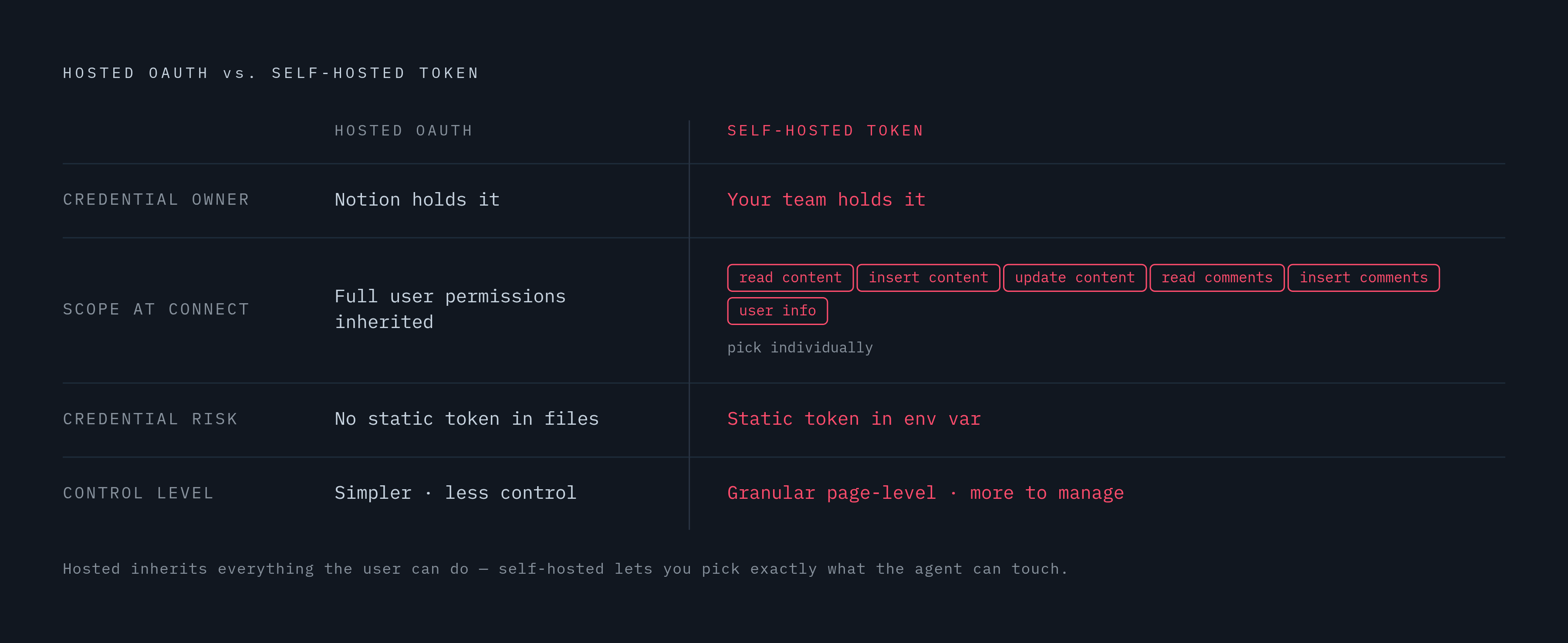
The hosted Notion MCP server runs on Notion's own infrastructure. A user approves it once through OAuth, and Notion manages the token from there on, so nobody on the team ever copies a secret into a file. Setup takes minutes and there's no server to run or patch. The tradeoff sits in scope: a hosted connection inherits the full set of permissions the authenticated user already has in Notion, and there's no way to carve out a narrower set of capabilities at the moment the connection is made. If the person who approved it can edit a database, the agent can edit that database too. For most teams without an air-gap requirement or a specific need to lock an agent down to read-only access, this is the simpler and faster path.
The self-hosted path, built on projects like suekou's mcp-notion-server, trades that simplicity for control. Instead of OAuth, it runs on a Notion internal integration token passed in as an environment variable. The team running it owns the credential directly and is responsible for storing it safely. In exchange, that integration can be scoped at creation time to exactly the capabilities an agent needs: read content, insert content, update content, read comments, insert comments, or access to user information, picked individually rather than granted as a bundle. Scoping isn't just a checkbox at setup; it's an ongoing decision about what content the integration can touch. This path fits teams that need strict read-only enforcement, that run infrastructure cut off from the public internet, or that want a shared service account whose actions can be traced back to a team rather than to one person's login.
Neither path is the default right answer. A team running fully inside Notion's hosted infrastructure, approving connections per user, has less to manage but less control over exposure. A team running self-hosted gets granular scoping and page-level content control, at the cost of owning a static credential and the infrastructure it runs on. The decision should follow from the environment and the risk tolerance.
Workspace admin controls that must be enabled before any enterprise MCP rollout
Whichever deployment path a team chooses, the next stop is the same screen: Settings, then Connections, then the Manage tab, where two separate settings decide whether the rollout is governed from day one or left wide open.
The first is a toggle called Enable custom MCP servers. A workspace admin has to turn it on before anyone in the workspace can add a custom MCP connection to a Custom Agent. Leave it off and nobody can add one. The second setting controls who gets to pick which connections are allowed. If you set it to Approved and recommended, the workspace automatically approves any connection Notion itself recommends, a reasonable default if your team trusts Notion's own vetting. Set to Approved only, an admin manually selects every connection allowed in the workspace, approving by connection name, by connection ID, or by the specific URL of a custom MCP server. This second setting is where a lot of enterprise rollouts go wrong in practice: teams flip on custom MCP servers to unblock a project, skip past the approval-list setting because it feels like an extra step, and later discover that members have connected servers nobody on the security team reviewed.
It gives admins an approved list of AI apps, a running log of connection activity for auditing, and a disconnect-all switch that cuts every active MCP connection in the workspace at once. That switch is the one a security team should know how to reach before it's needed. If something looks wrong, this is the fastest way to stop every agent connection in a workspace at once, without having to track down and revoke each connection individually.
It helps to understand how connections are scoped once they exist. Each MCP connection belongs to exactly one Custom Agent, and it runs on the credentials of whoever authenticated it. Two agents that both connect to the same outside service don't share a connection. Revoking one agent's access doesn't touch the other's. That isolation is useful for containment, but it also means a shared production agent used by a whole team shouldn't be authenticated under one employee's personal login. The better practice is creating the Notion integration from a dedicated service-account user, so every action the agent takes traces back to that integration's identity in the audit log rather than to one person's account, which happens to be the attribution that makes the audit log worth anything.
Per-client configuration for the AI tools most enterprise teams are already using
Every client that supports Notion MCP connects to the same hosted server address. What changes from one tool to the next is where the configuration lives and how the OAuth approval gets triggered.
In Claude Code, a connection is added with claude mcp add --transport http notion, and the OAuth flow finishes by running /mcp. The scope flag used when adding the connection matters for larger teams. --scope local keeps the config to the current project and is the default, --scope project shares it through a .mcp.json file committed to the repo, and --scope user makes it available across every project a person works in. Sharing a config through --scope project only shares the connection setup, not the credential itself. Each team member still has to run their own OAuth approval before the connection works for them.
Cursor uses a JSON config file, either .cursor/mcp.json at the project level or ~/.cursor/mcp.json for a global setup, with the server address set inside an mcpServers block. Once the file is in place, the connection gets switched on in the Customize sidebar, and OAuth approval follows from there.
VS Code, through GitHub Copilot, uses a .vscode/mcp.json file pointing at the same hosted address with "type": "http". From the Command Palette, running MCP: List Servers lets a user start the server and complete OAuth, and a separate command, MCP: Open User Configuration, handles setup at the user level rather than per project.
Codex, used through ChatGPT, takes its config in ~/.codex/config.toml under an [mcp_servers.notion] block pointing at the hosted URL. Authentication runs through codex mcp login notion, and if teams share the setup, they put the same config block in a .codex/config.toml file at the project root.
Devin's setup runs through its own interface: Customize, then MCPs, then Add custom MCP, with the connection named Notion, the transport set to HTTP, the hosted URL entered, and OAuth selected as the auth method. Devin also offers a choice between two access models: with Personal access, each team member authenticates under their own account; with Organization access, you set up one shared connection built on a Notion service account, approved by someone holding Manage MCP Servers permission.
Notion's own setup guidance carries a specific caution: Notion AI and Custom Agents can also hold outbound MCP connections, since Notion is not only a target for agents but can call external MCP servers itself, making the workspace a node in a larger agent graph.
Teams choosing the self-hosted path instead use a config block that runs the server through npx, and they supply the integration token as an environment variable named NOTION_API_TOKEN. You get that token value directly from the integration secret shown on Notion's integrations dashboard after the integration is created.
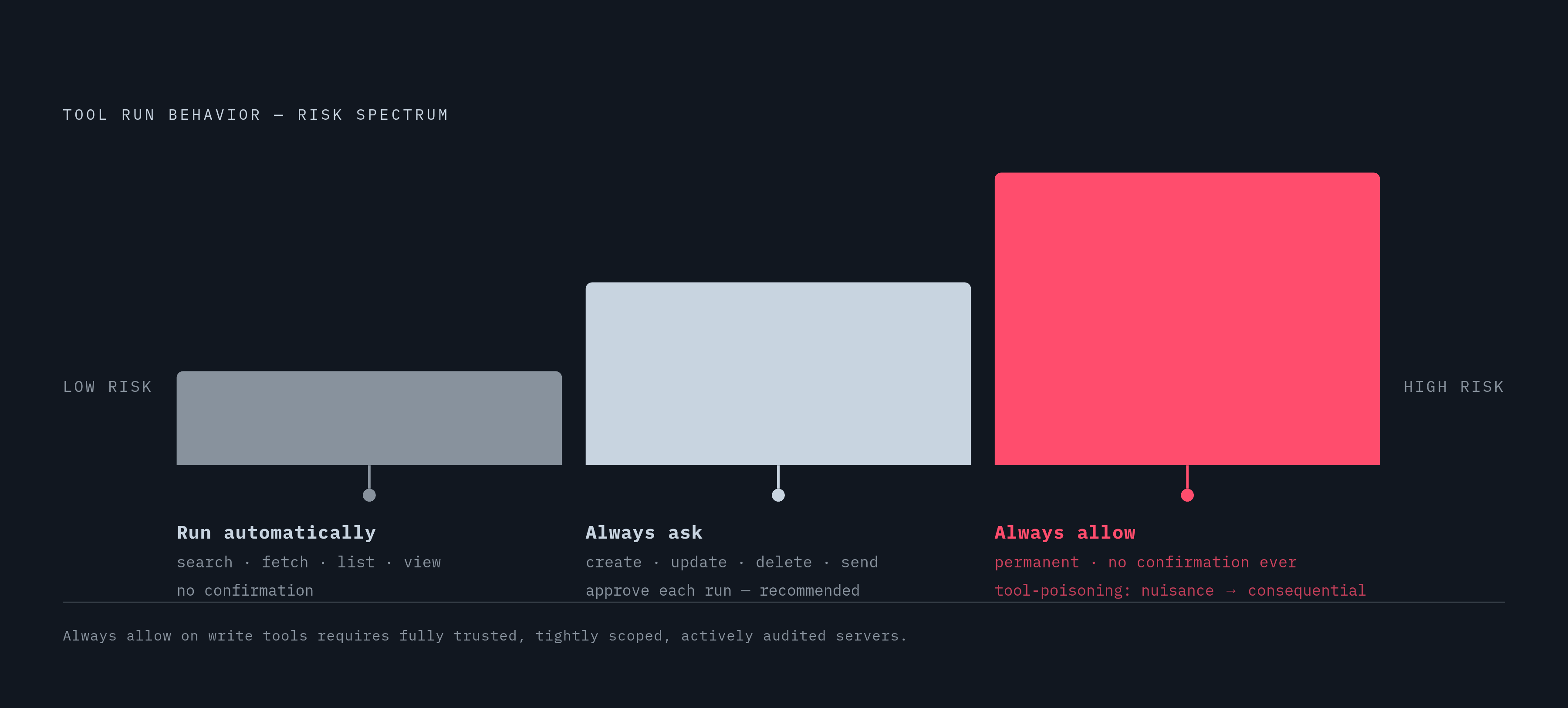
A connected client is not the end of the control story. Inside Custom Agent settings, every MCP connection expands into its individual tools, and each one has its own enable-or-disable switch plus a setting for how it runs. There are three run behaviors to choose from. Run automatically executes a tool with no confirmation step, which fits read tools like search, fetch, list, and view, since they don't change any data. Always ask requires a person to approve before the tool runs, and that's the sensible default for anything that writes, including create, update, delete, send, or post, a default that shouldn't be loosened without a clear, written reason. Always allow approves every tool from a server permanently and removes confirmation prompts from then on, which is the riskiest of the three settings and belongs only on servers that are fully trusted, tightly scoped, and actively audited. If you flip always-allow onto a write tool, that's what turns a tool-poisoning attack from a nuisance into something consequential, because no approval step is left to catch a malicious instruction before it runs.
The practical discipline this requires is simple to state and easy to skip under deadline pressure: turn on only the tools an agent's actual workflow needs and leave the rest switched off. Skipping it produces agents holding tool access their workflow never calls for. An agent built purely for knowledge-base lookup has no legitimate reason to hold access to notion-update-page or notion-move-pages. That read-write split isn't just about tidiness. Read tools leave no trace behind to review, but write tools generate events, and each one needs to trace back to a specific agent identity and a specific delegated permission, or the audit log tracking it is incomplete.
OAuth mechanics and credential hygiene
The authentication method picked at setup decides how much damage a stolen credential can do, and a static integration token sitting in a plaintext config file is the worst version of that bet. The MCP specification update from November 2025 made OAuth 2.1 with PKCE a requirement for any server exposed over HTTP, replacing static API keys as the default authentication method for any implementation that wants to be considered compliant. That shift reflects a basic fact about how these credentials fail. A static token copied into an environment variable or a config file keeps working for anyone who can read that file, with no built-in expiration and no step that confirms the request came from an authorized session. OAuth 2.1 with PKCE replaces that single long-lived secret with a flow that issues short-lived tokens tied to a specific authorization exchange, so if a token leaks, it has a far narrower window to be useful.
That tradeoff circles back to the deployment choice covered earlier. The hosted path keeps tokens out of config files entirely, because Notion manages them behind the OAuth flow. The self-hosted path puts a static token into a team's own infrastructure, but you get granular scoping in exchange. Choosing self-hosted means a team has taken on the job of storing that token properly, rotating it, and keeping it out of version control, rather than handing that job to Notion's hosted OAuth flow by default.
Sources
- Notion MCP Server: Secure Setup for Claude & AI Agents (2026)
- GitHub - makenotion/notion-mcp-server: Official Notion MCP Server · GitHub
- GitHub - suekou/mcp-notion-server: A Model Context Protocol server for connecting Notion to MCP-compatible clients · GitHub
- Notion MCP - Notion Docs
- MCP connections for Notion Custom Agents | Notion Help – Notion Help Center
- Connect to Notion MCP - Notion Docs
- Connect AI tools with Notion MCP
- Deny or restore enterprise-managed MCP client access - Notion Docs